

Understanding Adjust Cost – Item Entries in Business Central: What It Does, When to Run It, and What Happens If You Don’t
Estimated reading time: 8 minutes
At a Glance
- The Adjust Cost batch job is the reason your inventory valuation and COGS numbers either match reality or quietly diverge from it. The difference between the two is whether anyone set it up properly after go-live.
- There is a specific two-step sequence that most teams skip. Getting it wrong means your item ledger says one thing and your GL says another. This article walks through both steps and what breaks when you only do one.
- A comparison of automatic vs. scheduled runs later in this article lays out the real tradeoff, including a gotcha that catches high-volume food manufacturers running the “Always” option.
- If you have inherited a BC environment and never checked this setting, the first-run section at the end explains why that should be your next conversation with the client. Not next week. Now.
Every Business Central implementation that touches inventory has the same ticking time bomb: unprocessed cost adjustments. The Adjust Cost – Item Entries batch job is one of BC’s most important background processes, and one that most consultants and end-users overlook. I have audited BC environments where this batch job had not run in months. The inventory valuation, COGS, and margin reports in those environments were fiction.
This guide breaks down what the batch job does, when you need it, and how to configure it so your numbers stay honest.
What Adjust Cost – Item Entries Actually Does
When you receive goods into inventory, BC records the expected cost in the item sub-ledger based on the purchase order line. If Expected Cost Posting to G/L is enabled on Inventory Setup, those expected costs also post to interim G/L accounts. When the vendor invoice arrives, the actual cost may differ. The batch job reconciles that gap.
Specifically, it recalculates the cost of every outbound item ledger entry (sales shipments, production consumption, transfers out) based on the actual cost of the corresponding inbound entries (purchase receipts, production output). It closes the gap between expected cost at the time of posting and actual cost after invoicing.
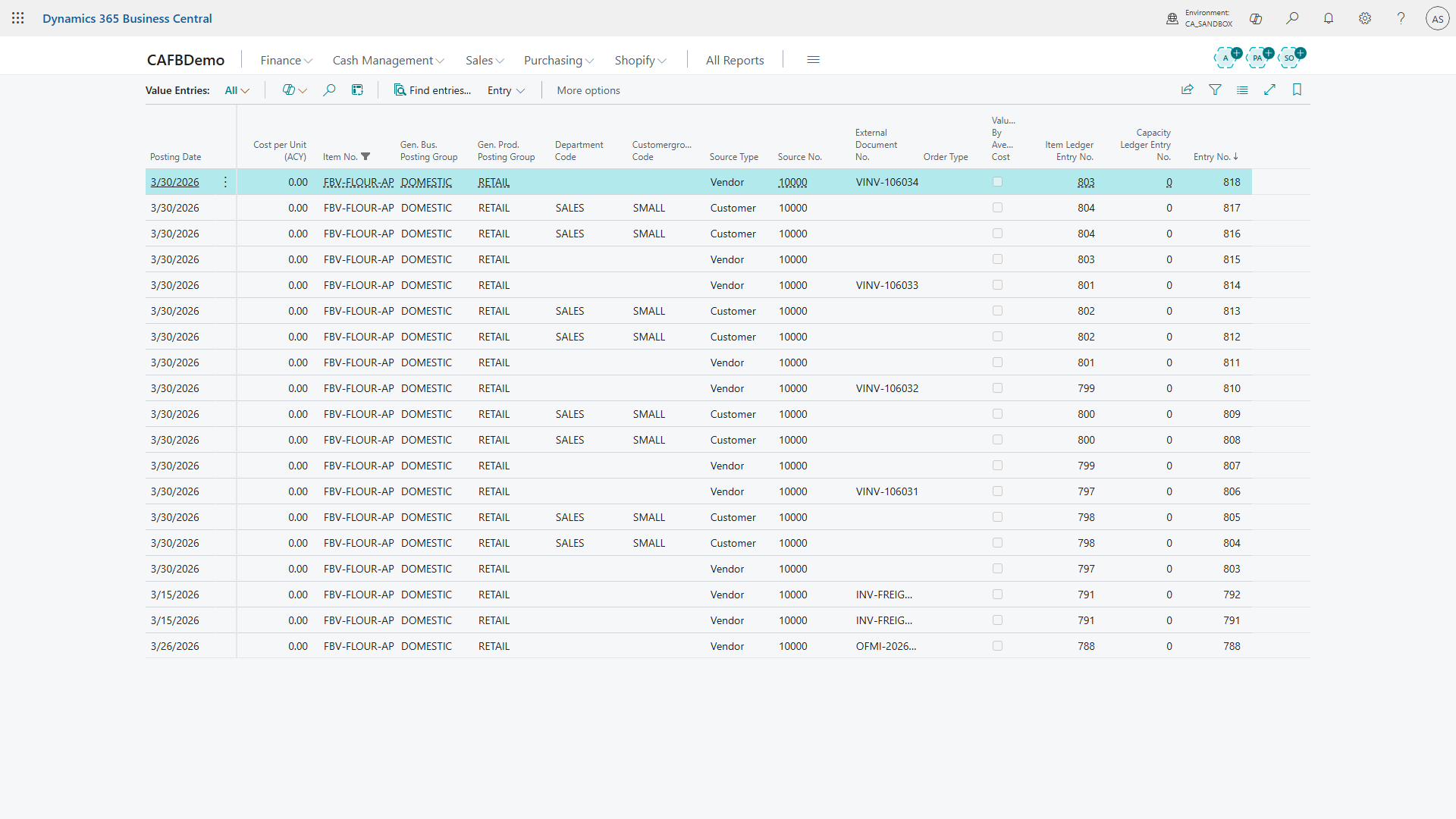
Think of it this way: BC posts inventory transactions in real time using the best cost information available. The Adjust Cost batch job goes back and creates adjustment value entries to close the gap once the real numbers arrive. The original entries stay untouched — BC adds new entries with the correction amount.
Three Scenarios Where This Matters
1. Purchase price variance. You receive 500 kg of flour at an expected cost of $1.80/kg. The invoice arrives a week later at $1.92/kg. Every production order that consumed that flour in the interim used the wrong cost. Adjust Cost creates adjustment entries for the downstream value entries to reflect the corrected cost.
2. Average costing recalculation. If you use the Average costing method, every new purchase changes the running average. Items that shipped or entered production before the average updated still carry the old cost. The batch job creates adjustment entries to bring those entries in line with the recalculated average.
3. Item charges posted after receipt. You receive a shipment and post the receipt. Three days later, your logistics team posts a $2,400 freight charge against that receipt. The item charge increases the landed cost of every unit in that shipment. Adjust Cost creates adjustment entries to propagate that cost increase to any units that already left inventory through consumption or sale.
Automatic vs. Manual: The Inventory Setup Decision
The Automatic Cost Adjustment field on the Inventory Setup page controls whether BC runs cost adjustments on its own. The options: Never, Day, Week, Month, Quarter, Year, or Always.
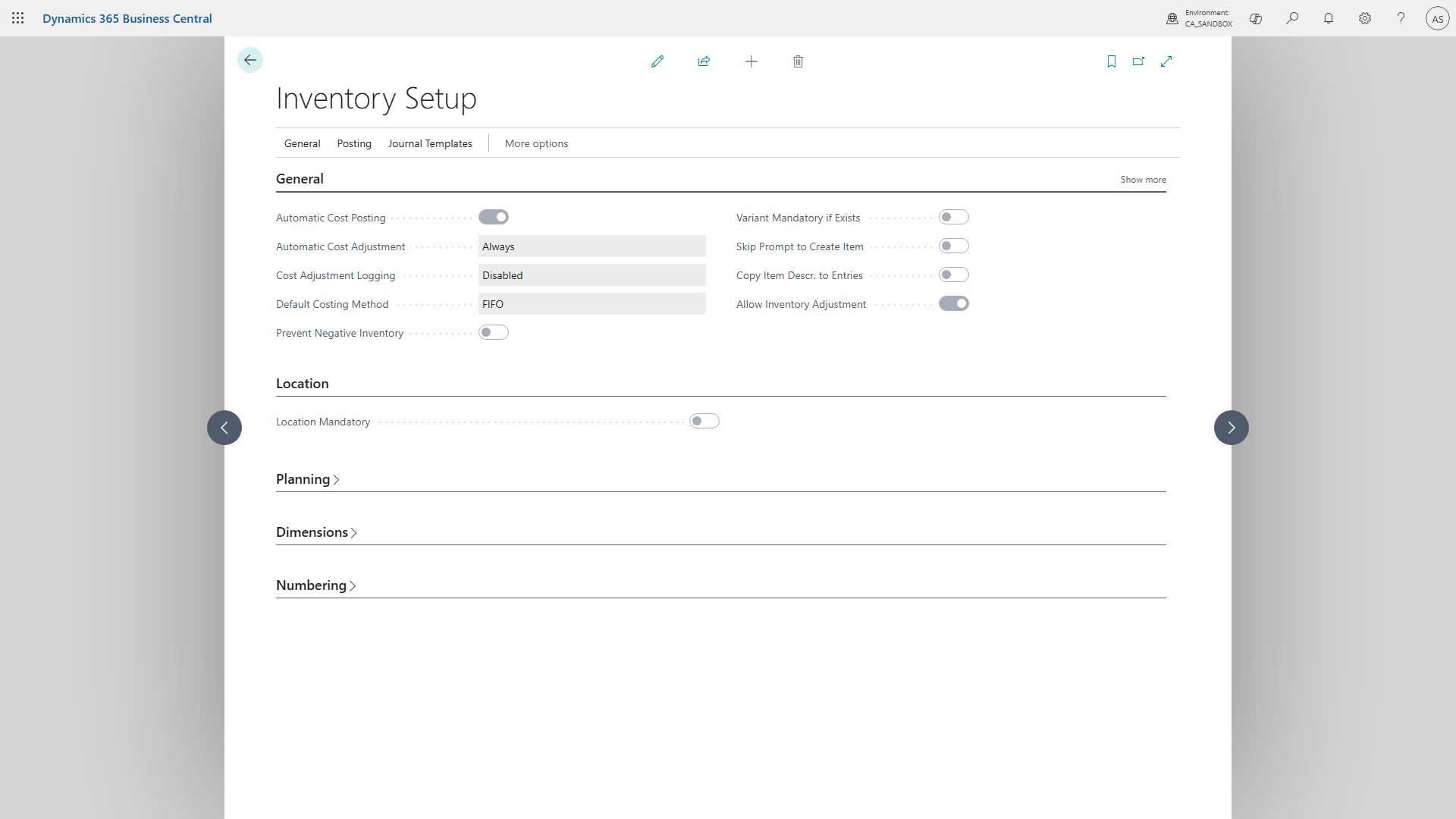
Always means BC triggers cost adjustment on every inventory posting, regardless of when the transaction occurred. The other time-based options (Day, Week, Month, Quarter, Year) only trigger automatic adjustment when the posting date falls within that period from the current work date. For small environments with low transaction volume, this works fine. For high-volume food manufacturers posting hundreds of transactions daily, “Always” can introduce noticeable performance drag on posting routines.
Many production environments set this to Never and run the batch job on a schedule: nightly, weekly, or before month-end close. This gives you control over when the performance hit occurs and keeps posting speeds fast during production hours.
There is no universally correct answer. The tradeoff is between real-time accuracy and posting performance. I have set this up both ways and seen both work. I have also seen both fail when nobody monitored the configuration after go-live.
The Two-Step Process Most People Forget
Adjust Cost – Item Entries and Post Inventory Cost to G/L are two separate batch jobs. Running one without the other leaves your books in an inconsistent state.
Adjust Cost creates adjustment value entries in the item sub-ledger. Post Inventory Cost to G/L pushes those corrected values to the general ledger. If you run Adjust Cost but skip the G/L posting, your item ledger is right but your financial statements are wrong. The inventory account on your balance sheet and the COGS on your income statement will not match the item valuation report.
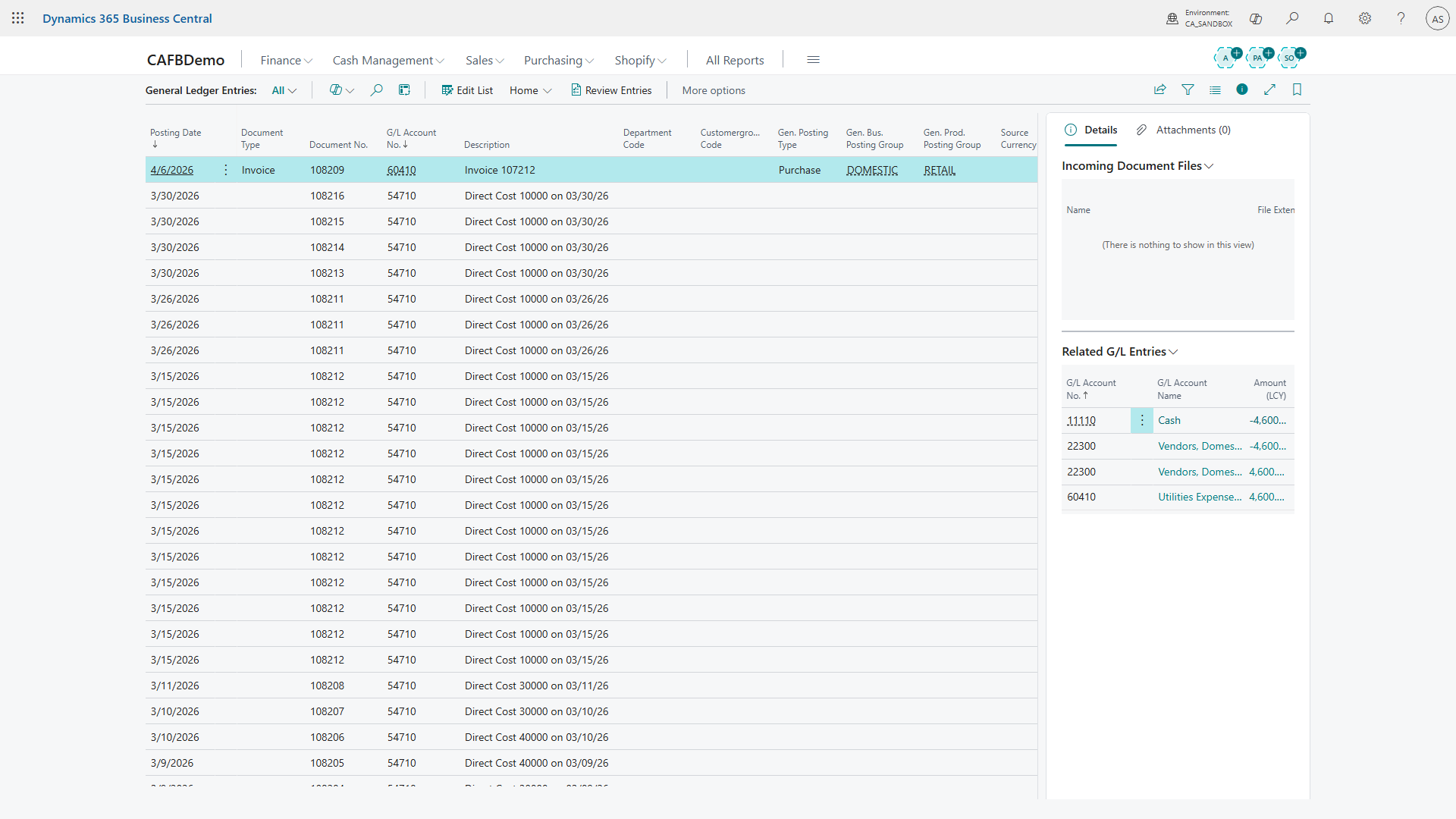
Always run them together. Adjust Cost first, then Post Inventory Cost to G/L immediately after.
If Automatic Cost Posting is enabled on Inventory Setup and the Post to G/L toggle is on when you run Adjust Cost, the batch job handles both steps in one pass. The separate Post Inventory Cost to G/L step is only required when Automatic Cost Posting is disabled.
What Happens If You Never Run It
Your inventory valuation report overstates or understates the actual value of your stock. Your COGS is wrong. Your gross margin reports are wrong. Your month-end close will have unexplained variances between the inventory sub-ledger and the GL.
The longer you wait, the bigger the adjustment. I have seen clients run this batch job for the first time after six months of neglect. The resulting adjustment entry hit the GL as a single massive correction that the CFO could not explain to the board. That is a conversation nobody wants to have.
For food manufacturers specifically, cost adjustments are critical because ingredient prices fluctuate constantly. You place a purchase order at $2.50/kg. The vendor invoices at $2.65/kg after production has already consumed the goods. Without running Adjust Cost, your production order costs and finished goods values are wrong. Your margin reports mislead you until the adjustment runs. In high-volume food production with daily purchasing, the drift between expected and actual costs can grow significant within a single week.
Best Practices
Run weekly at minimum for any environment with regular purchasing activity. Food manufacturers with daily ingredient purchasing should consider running nightly.
Always run Post Inventory Cost to G/L immediately after. No exceptions.
Run before every month-end close. This is non-negotiable. Your controller needs the item sub-ledger and the GL to agree before closing the period.
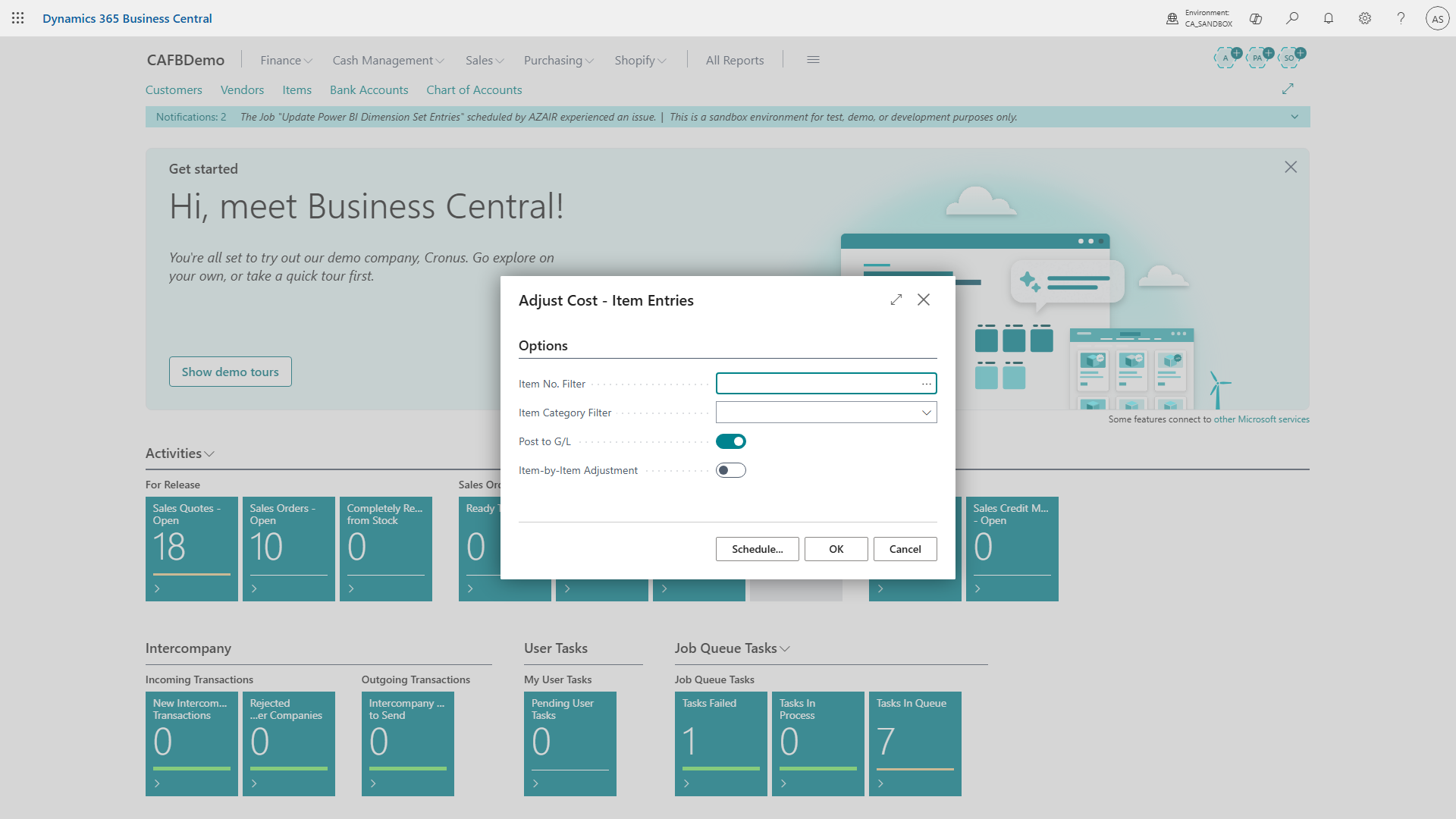
Filter strategically for large databases. The batch job processes every item with unadjusted entries. On a database with thousands of items and years of history, this can take hours. Use the Item No. Filter or Item Category Filter to limit scope. There is no posting date range filter — the batch job processes all unadjusted entries for the filtered items regardless of date. For very large databases, enable the Item-by-Item Adjustment toggle so partial progress is saved if the process is interrupted.
Monitor after go-live. The Automatic Cost Adjustment setting is a field that the implementation team configures during go-live and rarely reviews afterward. Check it quarterly. If someone changed it from “Week” to “Never” during a performance troubleshooting session and forgot to schedule the batch job, you have a silent problem accumulating every day.
Use the Inventory Cost Adjustment page (BC24+). If your environment is on version 24 or later, this page provides monitoring, batch management, and diagnostic tools for cost adjustment runs. Use it to track adjustment status, identify problem items, and troubleshoot large-scale adjustments instead of relying solely on the batch job request page.
The First-Run Gotcha
Never run Adjust Cost for the first time on a database with months or years of unprocessed entries without warning the client. The adjustment will generate a large volume of value entries and potentially a significant GL impact. Run it during off-hours. Review the results before posting to GL. Prepare the finance team for what the adjustment will look like on the trial balance.
If you inherit a BC environment where nobody has run this batch job, that is your first conversation with the client. Not the second. Not after you have started other work. First.
What is your preferred approach: automatic cost adjustment on every posting, or a scheduled batch job? I have seen both work and both fail spectacularly. What has been your experience?
Frequently Asked Questions
How often should I run Adjust Cost – Item Entries in Business Central?
At minimum, run it weekly for any environment with regular purchasing activity. Food manufacturers with daily ingredient purchasing should run it nightly. Always run it before month-end close so your item sub-ledger and general ledger agree when the controller closes the period.
What is the difference between Adjust Cost – Item Entries and Post Inventory Cost to G/L?
Adjust Cost creates correction entries in the item value sub-ledger. Post Inventory Cost to G/L pushes those corrected values to your general ledger accounts. Running the first without the second leaves your item ledger correct but your financial statements wrong. Always run them together, in that order.
Does the Automatic Cost Adjustment setting on Inventory Setup replace the need to run the batch job manually?
It can, depending on transaction volume. Setting it to “Always” triggers cost adjustment on every inventory posting. For small environments this works well. For high-volume food manufacturing, it can slow down posting routines. Many production environments set this to “Never” and schedule the batch job to run during off-hours instead.
What happens if Adjust Cost – Item Entries has never been run on my Business Central environment?
Your inventory valuation, COGS, and margin reports are likely wrong. The longer the gap, the larger the correction. Running it for the first time after months of neglect generates a large batch of adjustment entries and a potentially significant GL impact. Run it during off-hours and review the results before posting to GL.